Printing Prints from the printer you already have
4×6 prints from any printer on a Windows PC; the kiosk can be on another network.
How it works
Install and pair
Run the agent on Windows and enter the pairing code from the dashboard.
Pick the printer
Choose any printer installed in Windows; the agent picks matching 4×6 paper and orientation.
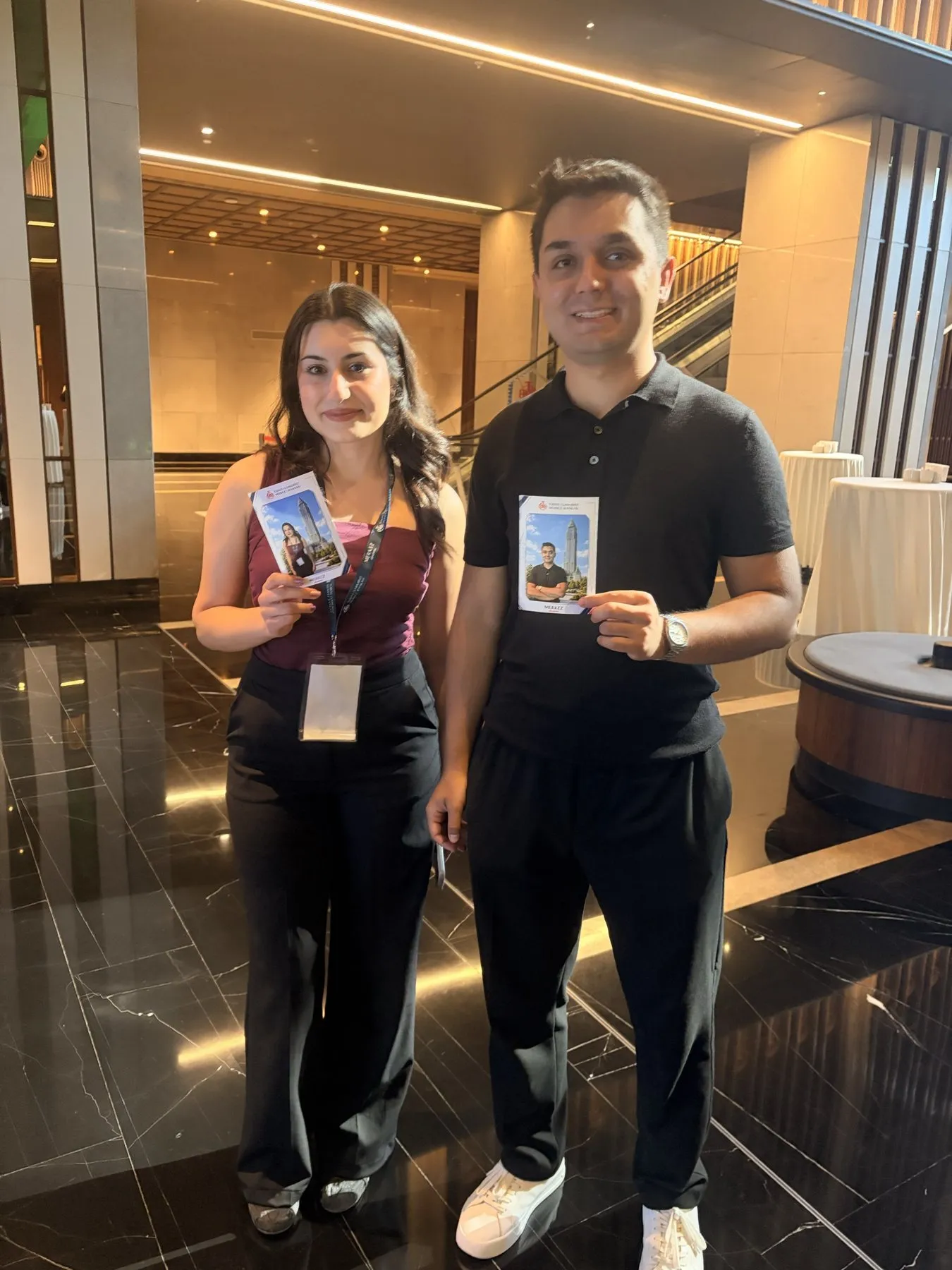
The guest taps Print
Each tap queues one copy, up to the per-result limit you set. Reprint any result from the dashboard.
Details
- Size
- 4×6 in (10×15 cm), 300 dpi, borderless fit
- Printers
- Any printer installed in Windows
- Network
- Kiosk and printer don't need to share a network
- Copies
- Per-result limit set in Studio; reprints from the dashboard
- Status
- Queued, printing, sent to printer, succeeded or failed — shown in the dashboard
Good to know
- Printing is started by the guest's tap; there is no automatic print.
- Only the 4×6 in size is supported; no 2×6 strips.
- Needs a Windows PC; there is no AirPrint or direct printing from the tablet.
- "Sent to printer" is not proof the print came out; check the printer.
Questions
Which printer brands work?
Any printer with a Windows driver. Eventwink doesn't depend on a brand; choose a dye-sublimation photo printer for speed and quality at events.
Features
-
QR and email sharing
Every result gets its own guest page. Guests scan the QR on the kiosk, download the photo, GIF or video, and share it — no app, no account.
Read more · QR and email sharing → -
Guest form and consent
Optional form before or after the shot; each consent box opens your own notice.
Read more · Guest form and consent → -
Remote control
Pair a phone with the kiosk and start the shot from it.
Read more · Remote control →