iPad photo booth app All twelve experiences, as a kiosk on the iPad you have
The same app runs on iPhone; build events in Studio on any device.
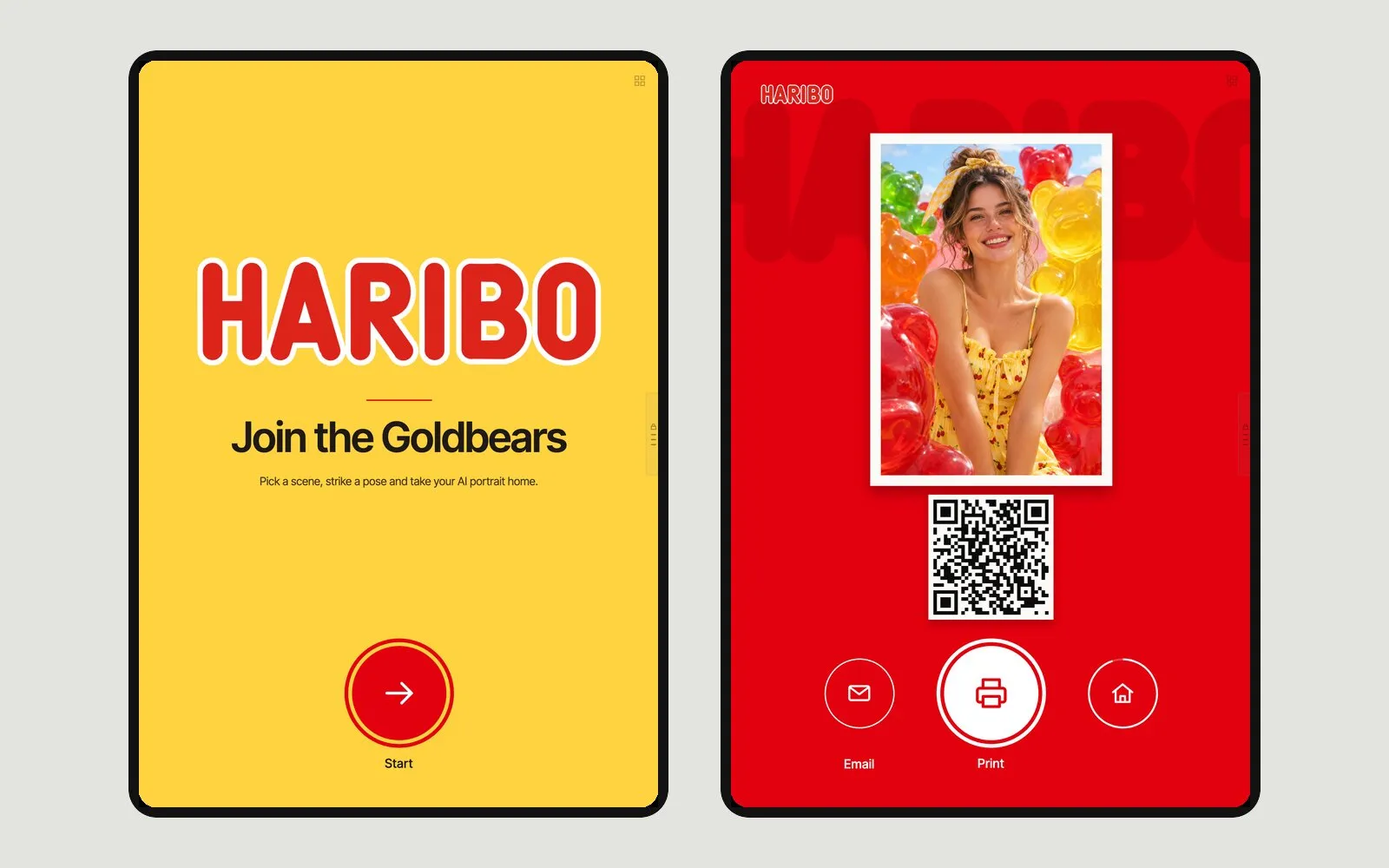
Set up an iPad kiosk
Install and sign in
Install the Eventwink iOS app and sign in. An operator account can open kiosks only for the events you choose.
Open the kiosk
Pick the event and the station. Event files download to the iPad; leaving the kiosk needs the operator PIN.
Lock it to the app
Turn on Guided Access in iPadOS so guests can't leave the app. Managed fleets can use MDM Single App Mode.
On iPad
- Devices
- iPad and iPhone, in portrait
- Cameras
- Front or back camera, or a USB (UVC) camera on iPad; mirroring, rotation, 1–4× zoom
- Offline
- Captures queue on the iPad and survive a restart
- Sharing
- QR guest page, email and AirDrop
- Printing
- Through the print agent on a Windows PC; the iPad and printer don't need to share a network
- Remote control
- Start the capture from a paired phone
- Screen
- Stays awake while the kiosk is open
Good to know
- There is no AirPrint; prints go through the print agent on Windows.
- iPhone doesn't list USB cameras; use an iPad with USB 3 for an external camera.
- Zoom depends on the camera, and many USB cameras have none.
- The app runs in portrait only.
- AI results need a connection; queued captures are processed when it returns.
All twelve experiences run on iPad
Questions about the iPad app
Can I use a DSLR or mirrorless camera with an iPad?
Yes, if the camera works as a USB (UVC) webcam. Connect it to an iPad with USB 3 and pick it as the event's camera. iPhone doesn't list USB cameras.
What happens if the venue Wi-Fi drops?
The kiosk keeps capturing. Captures wait on the device, survive an app restart and are processed when the connection returns; guests get their result, QR or email then. Events with SMS verification can't continue offline.
How do I stop guests from leaving the app?
Turn on Guided Access under Settings → Accessibility, then triple-click the top or Home button in the app to start a session. Leaving the kiosk screen itself also asks for the operator PIN.
Can I mix iPads, Android tablets and computers at one event?
Yes. The same event opens on any of them. An event has up to twelve named stations and you pick one on each device; how many produce at the same time depends on the plan.
Can I try it before paying?
Yes. The free demo includes every experience, 10 AI credits and 1 production station. No card is needed; outputs carry a watermark.